
Installing CVAT on a Raspberry Pi 5 (Part 1)

Introduction#
Have you heard of CVAT?
CVAT is an annotation tool designed specifically for computer vision projects. It is arguably one of the most popular open-source tools in this field.
Although CVAT is extremely useful, running it for personal use raises a few practical concerns. Keeping it running on your main PC consumes memory, and the official images are only available for x86_64 systems, so you cannot run them as-is on a spare Raspberry Pi.
In this guide, we will work around those limitations and get CVAT running on a Raspberry Pi 5.
Test environment#
| Item | Details |
|---|---|
| PC | Raspberry Pi 5 (8 GB) |
| OS | Raspberry Pi OS (64-bit, 6.12.75+rpt-rpi-v8) |
| CVAT | v2.64.0 |
1. Prerequisites#
Install Docker#
CVAT runs in Docker, so install Docker using the official installation script.
# Install Docker using the official script
curl -sSL https://get.docker.com | sh
Grant the currently logged-in user permission to use Docker, then apply the change.
# Add the currently logged-in user to the docker group
sudo usermod -aG docker $USER
# Apply the change to the current shell (you can also reboot)
newgrp docker
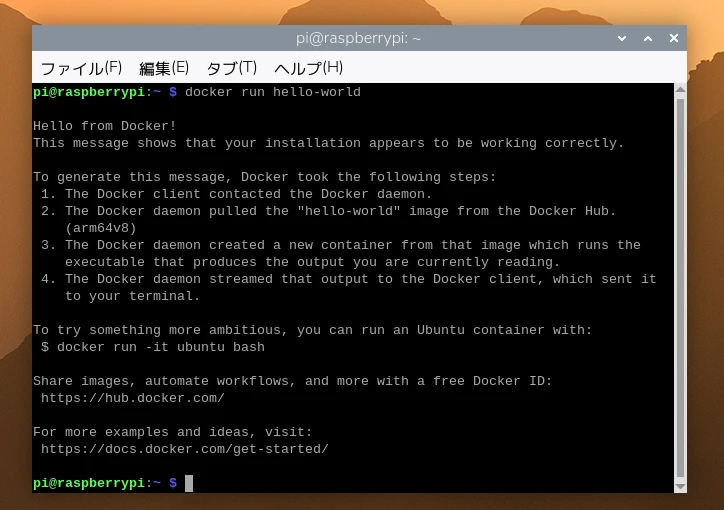
Verify that Docker is working.
docker run hello-world
If you see output like the screenshot below, Docker has been installed successfully.
Configure the page size#
Operating systems manage memory in units called pages, and the page size is the smallest unit used for that management.
The same concept exists in Windows and other Linux distributions, and most operating systems use a page size of 4 KiB.
Raspberry Pi OS is somewhat unusual because it uses 16 KiB pages by default. Because of this difference, some Docker images do not work correctly with the default configuration.
Follow the steps below to change the page size to 4 KiB.
Changing the page size may cause software that previously worked to stop working correctly. Make this change at your own risk.
# Check the current page size (the default should be 16384)
getconf PAGE_SIZE

# Edit the configuration file
sudo nano /boot/firmware/config.txt
Add the following lines to the end of /boot/firmware/config.txt.
[pi5]
kernel=kernel8.img
After rebooting, confirm that the page size is now 4096.
# Reboot
sudo reboot

# Check the current page size (the change is complete if this shows 4096)
getconf PAGE_SIZE
2. Install CVAT#
Download CVAT#
Once the prerequisites are in place, clone the CVAT repository.
# Clone the repository from GitHub
git clone https://github.com/cvat-ai/cvat

cd cvat

# Check out the v2.64.0 source
git checkout v2.64.0
Build CVAT#
Next, build the Docker images used by CVAT's core services.
On an x86_64 machine, you can use the prebuilt images. On an ARM64-based Raspberry Pi 5, however, you need to build them yourself.
docker compose -f docker-compose.yml -f docker-compose.dev.yml build cvat_server cvat_ui
In this test environment, the build took about 20 to 30 minutes.
As shown below, CPU usage stayed close to 100%.

Configure the host address#
CVAT cannot be accessed through an address that has not been registered in advance.
The default host is localhost. To access CVAT from another device on your LAN, create a file named .env in the repository and configure it as shown below.
CVAT reads this file as environment variables.
CVAT_HOST=10.10.10.114 # Replace this with the address of your Raspberry Pi 5
3. Start CVAT#
Start CVAT from the command line#
After completing the configuration, start CVAT with the following command.
docker compose -f docker-compose.yml up -d
Add an administrator account#
Once CVAT is running, add an administrator account with the following command.
docker exec -it cvat_server bash -ic 'python3 ~/manage.py createsuperuser'
The first startup includes some initialization work. If you receive an error, wait a little and try the command again.
As a rule of thumb, if errors continue for more than 10 minutes, the cause may be something other than initialization.
The account has been created successfully when you see a screen like the one below.

Access CVAT from a browser#
After creating the account, open CVAT in your browser.
CVAT uses port 8080. If you did not configure a host address above, open localhost:8080. If you specified an address, open it in a form such as 10.10.10.114:8080.
If everything is working, the login screen should appear.
Enter the username and password that you created from the command line.
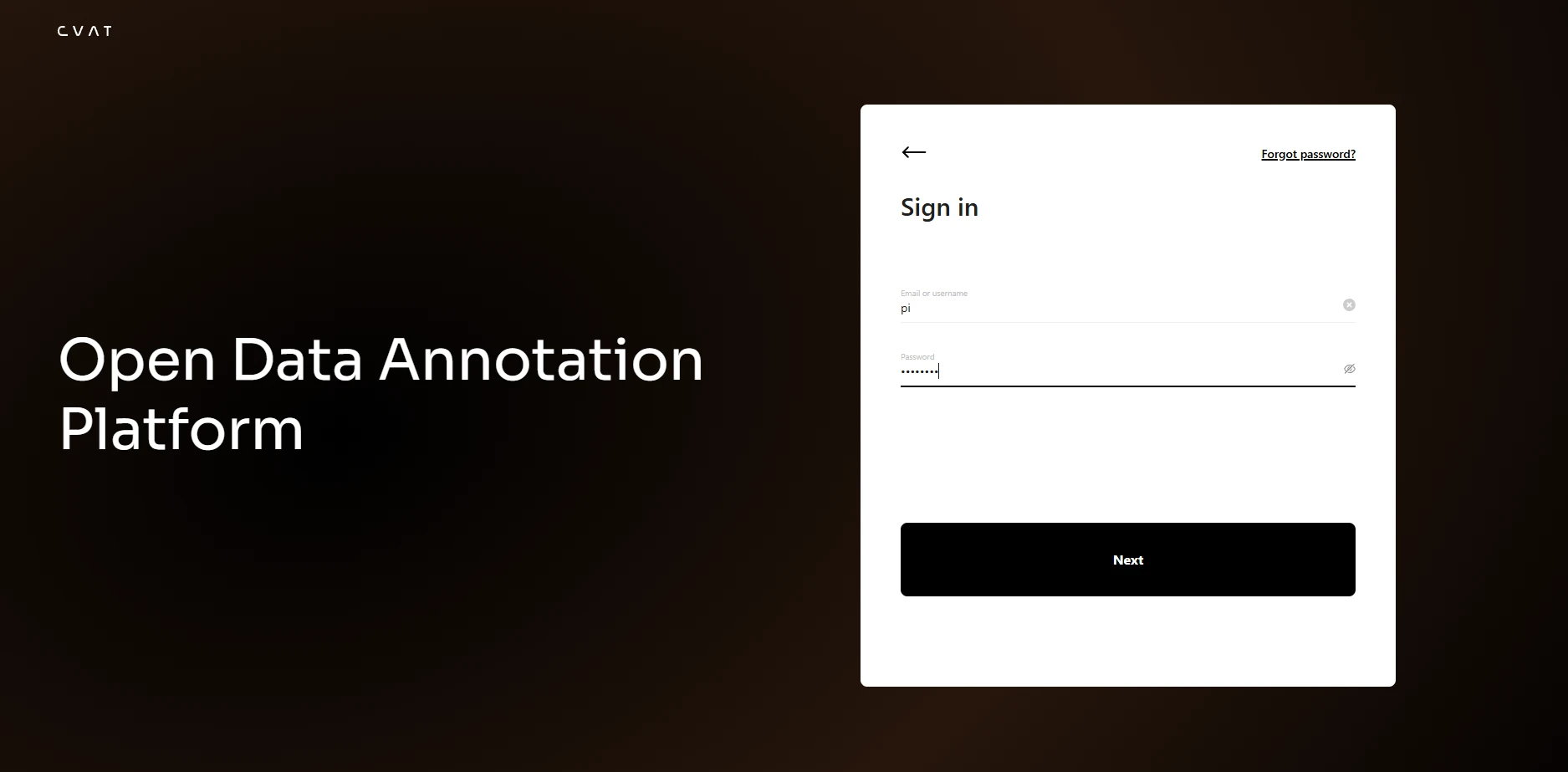
After logging in, you should see a screen like the one below.
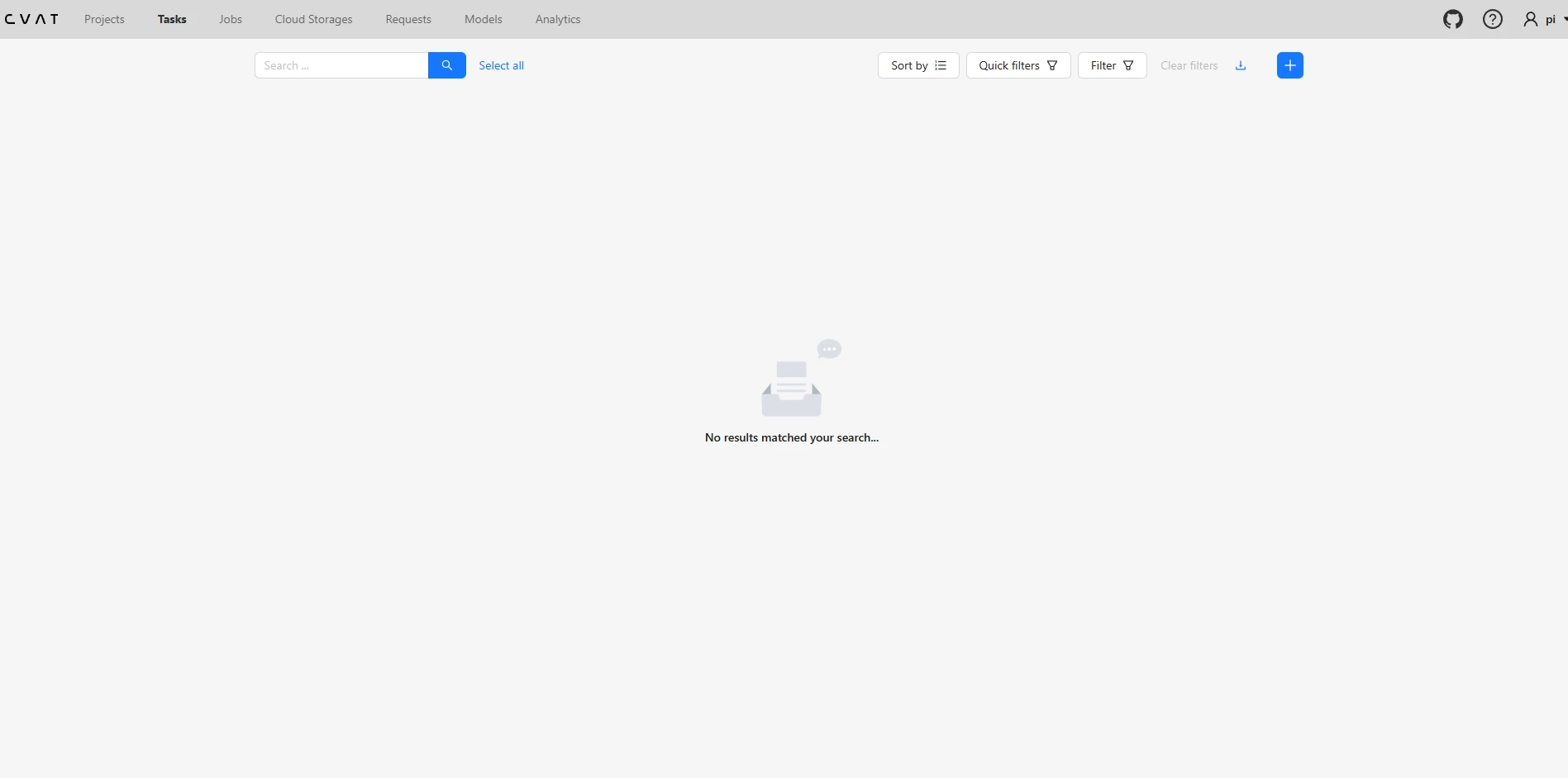
CVAT is now installed and ready to use.
4. Stop CVAT#
To stop CVAT, run the following command from the root directory of the repository.
docker compose -f docker-compose.yml down
5. Conclusion#
CVAT's backend is written in Python and its frontend in TypeScript. Because very little of the code depends on a specific CPU architecture, installing it on a Raspberry Pi 5 was relatively straightforward.
The two main points were changing the Raspberry Pi 5 page size and building the Docker images from source.
As noted earlier, changing the page size can affect other software. Make this change at your own risk.
References#
Next reading
あわせて読みたい
関連するベンチや運用ログ、深掘り記事を続けて読めます。